BAS Schedule Not Working? Why Equipment Ignores the Schedule and What to Check First

When a BAS schedule is not working, the operator screen can still look perfectly normal while the equipment continues to run after hours, stays off during occupied time, or ignores a recent schedule change. That situation often leads technicians to edit the schedule repeatedly or reboot individual equipment controllers. Sometimes that works. Often it does not, because the visible schedule is only one part of the control path.
The useful question is not simply, “Is the schedule correct?” It is: “Which device owns the effective schedule, what value is it producing right now, which points is it writing to, and is anything with higher authority preventing that value from taking effect?”
Modern BAS platforms commonly implement scheduling with BACnet Schedule objects or equivalent supervisory logic. Trane documents that Tracer SC scheduling is based on BACnet Schedule object implementation. A BACnet Schedule can include an effective period, a weekly schedule, exception schedules, a current Present_Value, a list of referenced properties, and a priority at which scheduled values are written. A problem in any one of those layers can make a schedule appear correct but fail operationally.
In This Guide
- Why a Schedule Can Look Correct but Still Fail
- 1. Verify the Effective Schedule for Today
- 2. Identify Where the Schedule Actually Lives
- 3. Confirm the Schedule Is Writing to the Correct Point
- 4. Check Command Priority and Overrides
- 5. Verify Time, Date, and Time Zone
- 6. Separate a Schedule Problem from an Equipment Problem
- Real-World Field Case: The Computer Was Not the Schedule Host
- How to Fix a BAS Schedule Problem
- BAS Schedule Troubleshooting Checklist
- FAQ
- Key Takeaways
Quick Answer
When a BAS schedule is not working, verify the complete path from the effective schedule to the equipment instead of editing the time blocks repeatedly.
- Confirm the schedule is active for today and the current time.
- Check the effective schedule, not only the weekly schedule shown in the editor.
- Review holiday, calendar, and exception schedules that may override the normal week.
- Identify the device that actually hosts or executes the schedule.
- Confirm the schedule is writing to the intended occupancy, enable, or command point.
- Check command priority, operator overrides, local/hand modes, and other control logic.
- Verify time, date, and time-zone information on the device executing the schedule.
- If many unrelated scheduled systems fail together, investigate the common supervisory layer before rebooting every field controller.
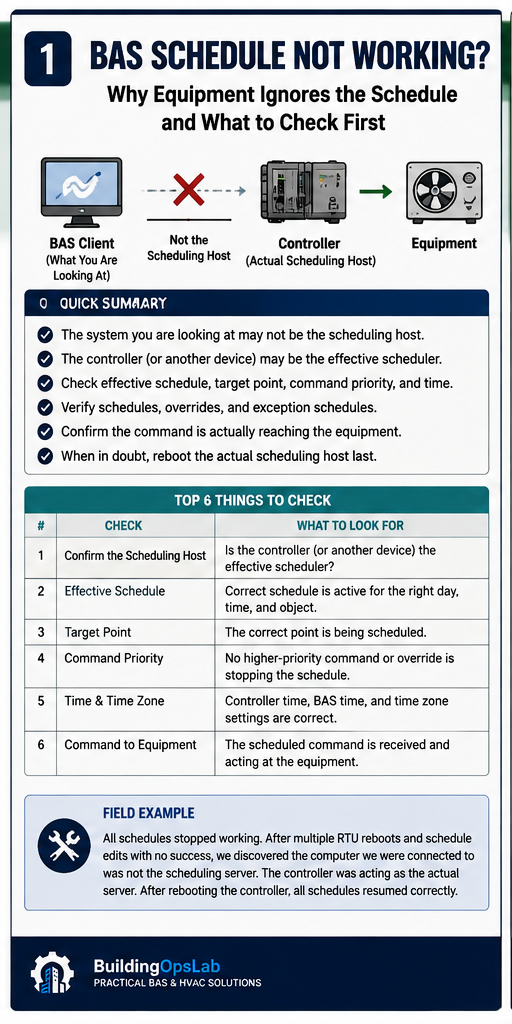
Why a Schedule Can Look Correct but Still Fail
A BAS user interface is not necessarily the same thing as the device that executes the schedule. Depending on the architecture, the schedule may reside in a supervisory controller, a network engine, an application controller, a server, or another controller that has scheduling capability. The workstation or web page may only be the interface used to view and edit that object.
This distinction matters because a schedule edit can be valid in the interface while the device responsible for execution is offline, unhealthy, unsynchronized, out of service, or unable to write to the target point. Current Metasys documentation, for example, exposes schedule status, scheduled-item status, effective period, writing priority, error status, and the time zone of the engine where the schedule resides. The exact names differ by manufacturer, but the troubleshooting concepts are broadly useful.
1. Verify the Effective Schedule for Today
Do not start with the weekly schedule alone. First determine what the schedule is supposed to be doing at this exact date and time.
BACnet scheduling combines weekly events with exception schedules, calendars, default values, and an effective period. Exception schedules can take precedence over the normal weekly pattern. A holiday entry, date range, temporary exception, or expired effective period can therefore produce an unexpected result even though Monday-through-Friday hours look correct.
- What is the schedule Present_Value or effective value right now?
- Is today inside the schedule Effective_Period?
- Is an exception or calendar active today?
- If two exceptions overlap, which one has precedence?
- Does the effective timeline match the operator’s expectation for the current time?
If the effective value is already wrong, the problem is inside the schedule configuration or its date/time context. If the effective value is correct but the equipment ignores it, move downstream.
2. Identify Where the Schedule Actually Lives
A common mistake is assuming the computer you are logged into is “the schedule server.” In distributed BAS architectures, the user interface may be separate from the device executing the schedule. Some supervisory controllers and advanced field controllers can host schedule and calendar objects themselves.
Open the schedule details and look for the object path, host device, engine, controller, station, or other ownership information provided by the platform. If that device is offline or not updating, troubleshooting individual RTUs may waste time because they are only waiting for a command that never arrives.
3. Confirm the Schedule Is Writing to the Correct Point
A schedule normally does not “turn the whole RTU on” in an abstract sense. It writes a value to one or more referenced properties: occupancy mode, enable, system mode, fan command, zone mode, or another application-specific point.
Verify the scheduled-items list or object references. After controller replacement, database migration, remapping, or graphics work, a schedule can be pointed at the wrong object, an obsolete object, or a valid point that no longer controls the intended sequence.
- Confirm the target object exists and is online.
- Confirm the point type and meaning: occupancy, enable, command, or setpoint.
- Check whether the target property is writable.
- Look for write errors or an unreliable schedule status.
- If multiple items are scheduled, check the status of each item rather than assuming all writes succeeded.
4. Check Command Priority and Overrides
A correct schedule value does not guarantee that it has control authority. BACnet commandable objects can receive commands at different priorities. A higher-priority operator override, safety sequence, optimization routine, local command, or other application can outrank the schedule.
If the schedule says Occupied but the target remains Unoccupied, open the command or priority details. Determine which process currently owns the effective value. Do not simply force the point until the source of the higher-priority command is understood.
5. Verify Time, Date, and Time Zone
Scheduling depends on time. A controller with the wrong clock or time zone can execute an otherwise correct schedule at the wrong hour. Daylight-saving changes, replacement controllers, stale time synchronization, and site time-zone configuration are all worth checking.
The important clock is the one used by the device executing the schedule. A laptop showing the correct local time does not prove the schedule host is correct.
6. Separate a Schedule Problem from an Equipment Problem
Use the effective schedule and target point to split the problem into layers.
- If the schedule effective value is wrong: investigate weekly events, exceptions, calendars, effective period, and clock.
- If the schedule value is correct but the target point is wrong: investigate object references, write errors, priority, or communication.
- If the target point changes correctly but the equipment does not respond: investigate the equipment sequence, local controls, safeties, interlocks, controller output, and mechanical system.
- If every scheduled system fails at once: investigate the shared scheduling host, supervisory controller, server/station, or common communication path.
Real-World Field Case: The Computer Was Not the Schedule Host
At one Trane BAS site, multiple pieces of scheduled equipment stopped following their expected schedules. Remote troubleshooting was performed with the site contact. Initial actions included rebooting RTU controllers and modifying schedules through the computer/server interface, but the problem remained.
Further investigation shifted away from the individual RTUs and toward the scheduling architecture. The computer being accessed was not the device actually executing the schedules. A field controller was functioning as the effective schedule host. After that controller was rebooted, scheduled operation returned and the affected equipment was verified to follow the intended schedules.
The lesson was not “reboot the schedule controller whenever schedules fail.” The lesson was to identify the execution layer before spending time on downstream equipment. Rebooting should be a controlled action taken only after the architecture is understood and diagnostic information has been preserved where practical.
How to Fix a BAS Schedule Problem
The corrective action depends on the layer that failed. Common fixes include correcting the weekly schedule or exception, restoring the host controller, repairing a failed object reference, correcting the device clock, releasing an unintended override, restoring communication, or re-synchronizing schedule data according to the manufacturer’s workflow.
After the fix, verify actual equipment operation through at least one schedule transition or a controlled temporary test. Confirm both the scheduled point and the physical equipment response. A schedule is not proven until the command path and the equipment both behave as expected.
BAS Schedule Troubleshooting Checklist
- Check the current effective schedule value.
- Check today’s weekly event, exception schedule, and calendar.
- Confirm the effective period.
- Confirm schedule-host date, time, and time zone.
- Identify the device that hosts/executes the schedule.
- Confirm scheduled-item references.
- Check schedule reliability or write errors.
- Check command priority and overrides.
- Confirm the target point changes.
- Confirm the equipment physically responds.
- If many systems fail together, investigate the common supervisory layer.
FAQ
Why does my BAS schedule show Occupied but the equipment stays off?
The schedule may be producing the correct value while the target point is overridden, mapped incorrectly, unavailable, or blocked by equipment safeties or local control. Compare the schedule Present_Value, the actual target point, command priority, and physical equipment status.
Can a holiday schedule override my normal weekly schedule?
Yes. BACnet exception schedules are designed to take precedence over the normal weekly behavior when their date criteria are active. Always review the effective schedule for the specific day.
Should I reboot the RTU controller when the schedule is not working?
Not as the first step. If multiple scheduled systems are affected, individual RTU reboots may not address the common scheduling layer. Identify where the schedule is hosted and trace the command path first.
Can the BAS computer show a schedule that is actually running somewhere else?
Yes, depending on the BAS architecture. The workstation or web interface may be a client while a supervisory controller, engine, or field controller executes the schedule. Verify the host device rather than assuming the screen you are using owns the schedule.
Key Takeaways
- A schedule screen is only one layer of the scheduling system.
- Check the effective value, not only the weekly time blocks.
- Exceptions, calendars, time, target references, and command priority can all change the outcome.
- Identify the schedule host before troubleshooting every downstream controller.
- Verify the physical equipment response after the schedule path is repaired.
Related BuildingOpsLab Guides
Sources & Further Reading
- Trane — Tracer SC Product Catalog: Schedules
- BACnet Committee — Addendum 135a: Schedule Object Effective Period, Weekly Schedule, and Exception Schedule
- Johnson Controls — Metasys Schedule Widget 15.0
- Johnson Controls — Schedule Object Configuration, SCT 19.0
- Johnson Controls — Calendar Object, SCT 19.0
Safety Disclaimer
This article provides general commercial HVAC and building-automation information. Always follow manufacturer documentation, site-specific procedures, and applicable safety requirements.